
A 4-Step Framework to Fix Your Multi-Location Google Business Profiles
A practical 4-step framework to clean up your multi-location Google Business Profiles: establish a master account, consolidate ownership, organize into groups, and lock down access.

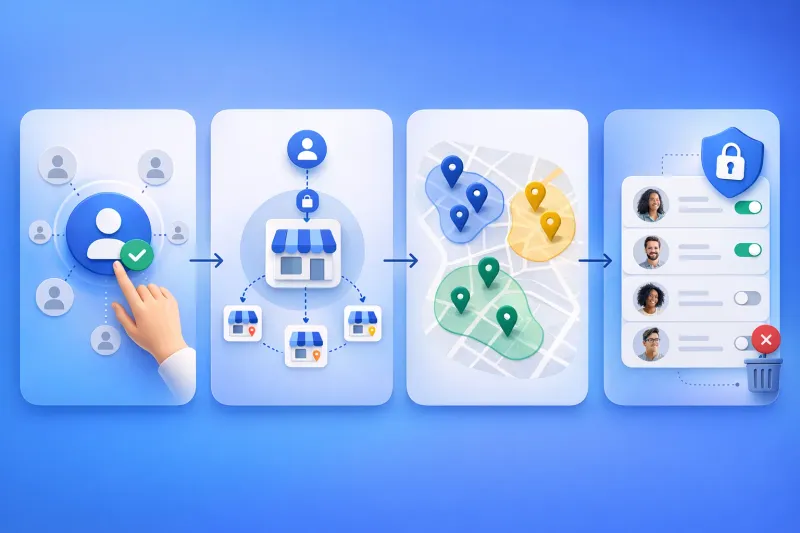
In our previous guide on how to manage Google Business Profiles at scale, we covered the most common mistakes multi-location businesses make. If that sounded painfully familiar, this article is your action plan — a step-by-step framework for cleaning up the mess and putting a proper structure in place.
A Quick Refresher: Why Google Business Profile Matters
Google Business Profile — formerly Google My Business — is the free tool that controls how your business appears on Google Search and Google Maps. It’s the single most important piece of local digital real estate you own. Customers are 2.7x more likely to consider a business reputable when it has a complete profile, and complete listings are 70% more likely to attract visits than incomplete ones. For multi-location businesses, a messy setup doesn’t just hurt one store — it creates a cascading problem across your entire network that gets harder to fix the longer you wait.
The Typical Mess (And Why It Hurts)
If you manage multiple locations, chances are you’re dealing with at least one of these situations:
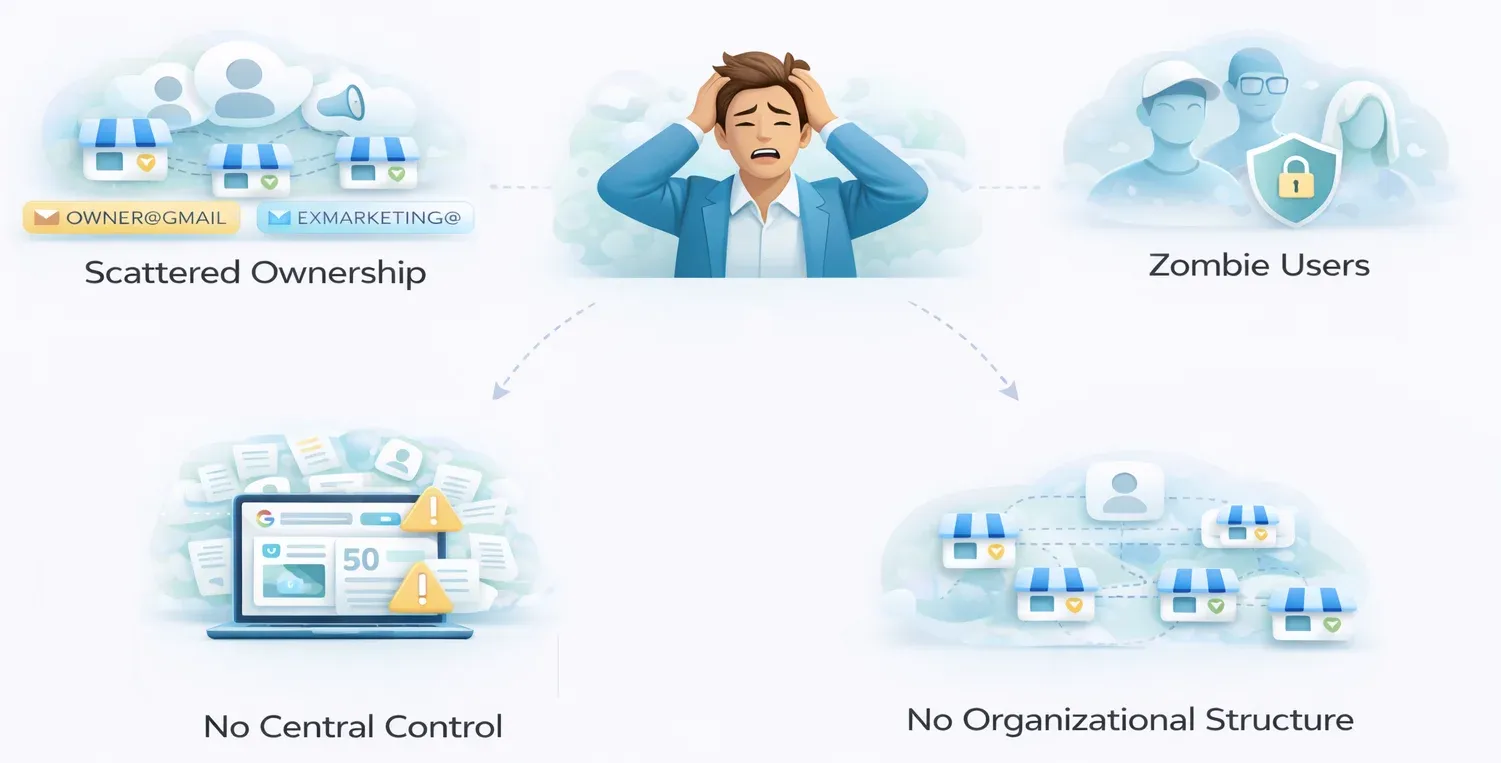
Scattered ownership. Different locations were created by different people over the years — a founder’s personal Gmail, a former marketing manager’s account, an agency that’s long gone. Nobody has a clear picture of who owns what.
No central control. There’s no single account that can see and manage all locations. Making a simple change like updating holiday hours across 50 locations means logging into multiple accounts — if you can even find the passwords.
Zombie users. Former employees, past agency partners, and freelancers who worked with you three years ago still have access to your profiles. Some might even have Owner-level permissions.
No organizational structure. Every location is managed individually, with no groups or logical structure. Adding a new team member means granting access to each location one by one. Removing someone? Same painful process in reverse.
These aren’t just operational headaches — they’re real business risks. Outdated profiles frustrate customers, unanswered reviews erode trust, and someone with Owner access going rogue could delete a profile that took years to build. That damage is irreversible. Spam and fake reviews are a related tax on unmanaged profiles, and clearing those means working Google’s report and appeal flow location by location. The good news? It’s all fixable.
The Cleanup Framework: Step by Step
Think of this as a four-step process: establish your central account, consolidate ownership, organize your structure, and clean up access. Each step builds on the previous one, so work through them in order.
Step 1: Select Your Master Account
You need one Google account that will be the Primary Owner of every location.
1a. Choose the right type of account. Ideally, a corporate Google Workspace account — something like gbp@yourcompany.com. Workspace gives you IT-level control and account recovery through your admin console. If you don’t have Workspace, a dedicated Gmail will work — just don’t use anyone’s personal email.
1b. Secure the credentials. Store the password in a proper password manager. Not in someone’s head, not in a spreadsheet, not in a Slack message. Limit access to two or three senior stakeholders.
1c. Enable two-factor authentication. Non-negotiable. If this account gets compromised, your entire local presence goes with it.
Step 2: Make the Master Account the Primary Owner of All Locations
The most important step, and it requires patience. Google doesn’t let you jump straight to Primary Owner — you need to go through a promotion process that takes about a week per location.
2a. Identify who currently owns each location. Try adding the location in Google Business Profile Manager. If the location is already verified, Google will show a shortened version of the current owner’s email address (e.g., sa****@gmail.com). This tells you who you need to contact to initiate the transfer. Keep a spreadsheet tracking each location, its current owner, and the migration status.
2b. Log in as the current owner and add the master account. Have the current owner (or log in yourself if you have access) follow these steps:
1. Find the location on Google Search or Google Maps.
2. Click the three-dot menu on the business profile.
3. Select Business Profile Settings.
4. Go to People and Access.
5. Click the + Add button.
6. Enter the email address of your master account.
7. Change the access level to Owner (not Manager).
8. Send the invitation.
2c. Accept the invitation on the master account. Switch to your master account, find the invitation email from Google, and click the link to accept.
2d. Wait one week, then promote to Primary Owner. Google requires a waiting period before a new Owner can be promoted. After about seven days, go back to People and Access and promote the master account to Primary Owner.
2e. Repeat for every location. Batch it — do ten or twenty per day. If a former owner is unresponsive, you’ll need Google’s ownership recovery process, which takes extra time. Flag these cases early and start recovery in parallel.
Step 3: Organize Locations into Groups
Google Business Profile’s group feature lets you organize locations into logical collections and manage access at the group level — making Step 4 dramatically easier.
3a. Decide on your grouping strategy. Group by brand, by client (if you’re an agency), by geography, or combine approaches. The key is to mirror how your teams actually work.
3b. Create your groups. Log in with your master account at Google Business Profile Manager, click Create Group, enter a name, and click Create. Repeat until all your groups are set up.
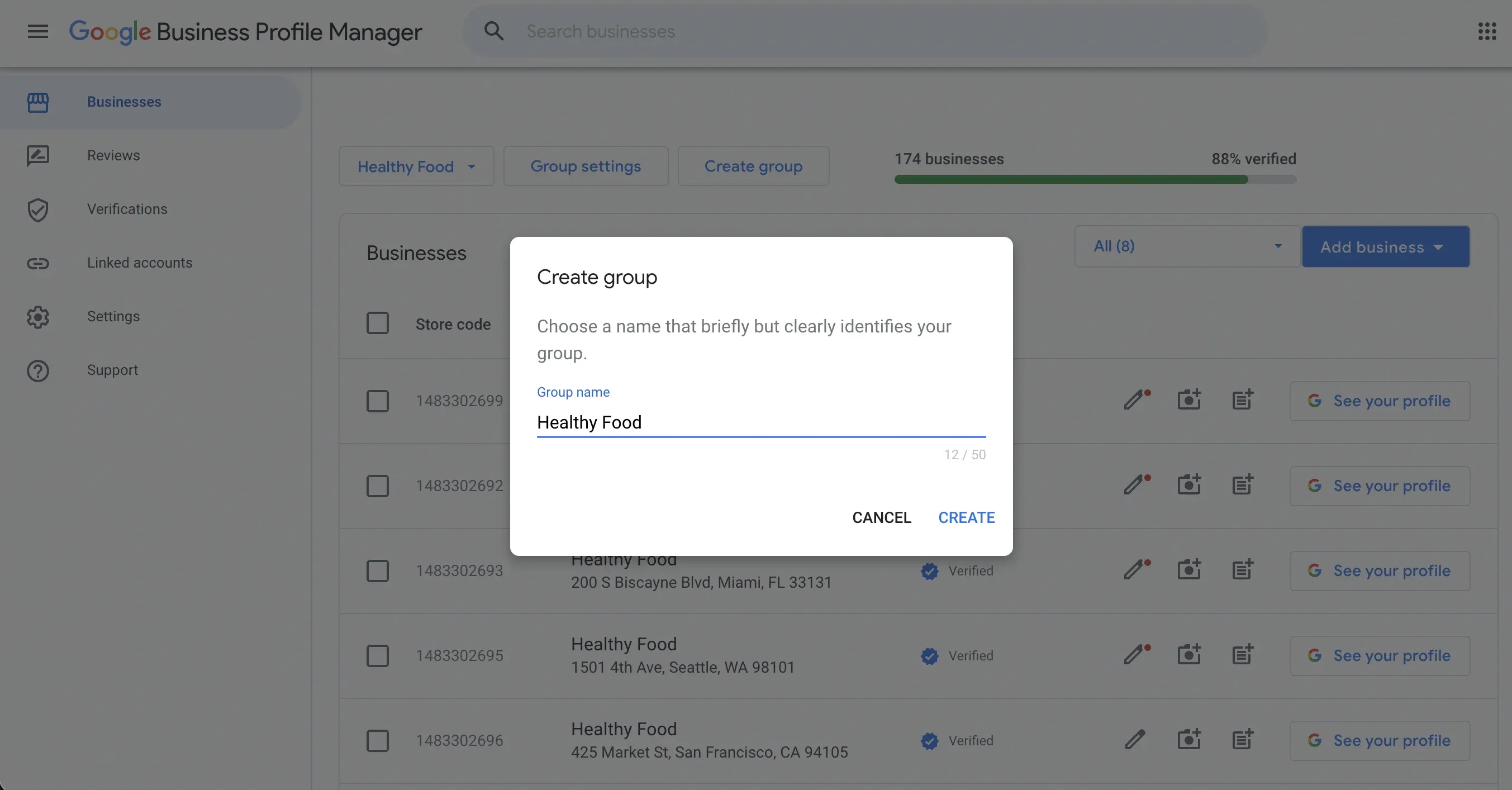
3c. Move locations into the appropriate groups. Go back to your list of locations, select the ones that belong in a group, open the Actions menu, click Transfer Businesses, and select the target group. Repeat for each group until every location has a home.
Step 4: Clean Up User Access
The satisfying part: making sure the right people have the right access — and nobody else.
4a. Audit current access. Review who has access to each group and location. Look for former employees, old agency accounts, personal Gmails that should be corporate accounts, and anyone with Owner-level access who doesn’t need it.
4b. Remove outdated users. If someone no longer needs access, remove them. You can always re-add someone later, but leftover access is a security risk waiting to become a problem.
4c. Move to group-based access. For users who need access to multiple locations, add them to the appropriate group instead of individual locations. In Google Business Profile Manager, select the group, go to Group Settings → Manage Users, and add the user. New locations added to the group automatically inherit the same user access, and revoking means removing from the group just once.
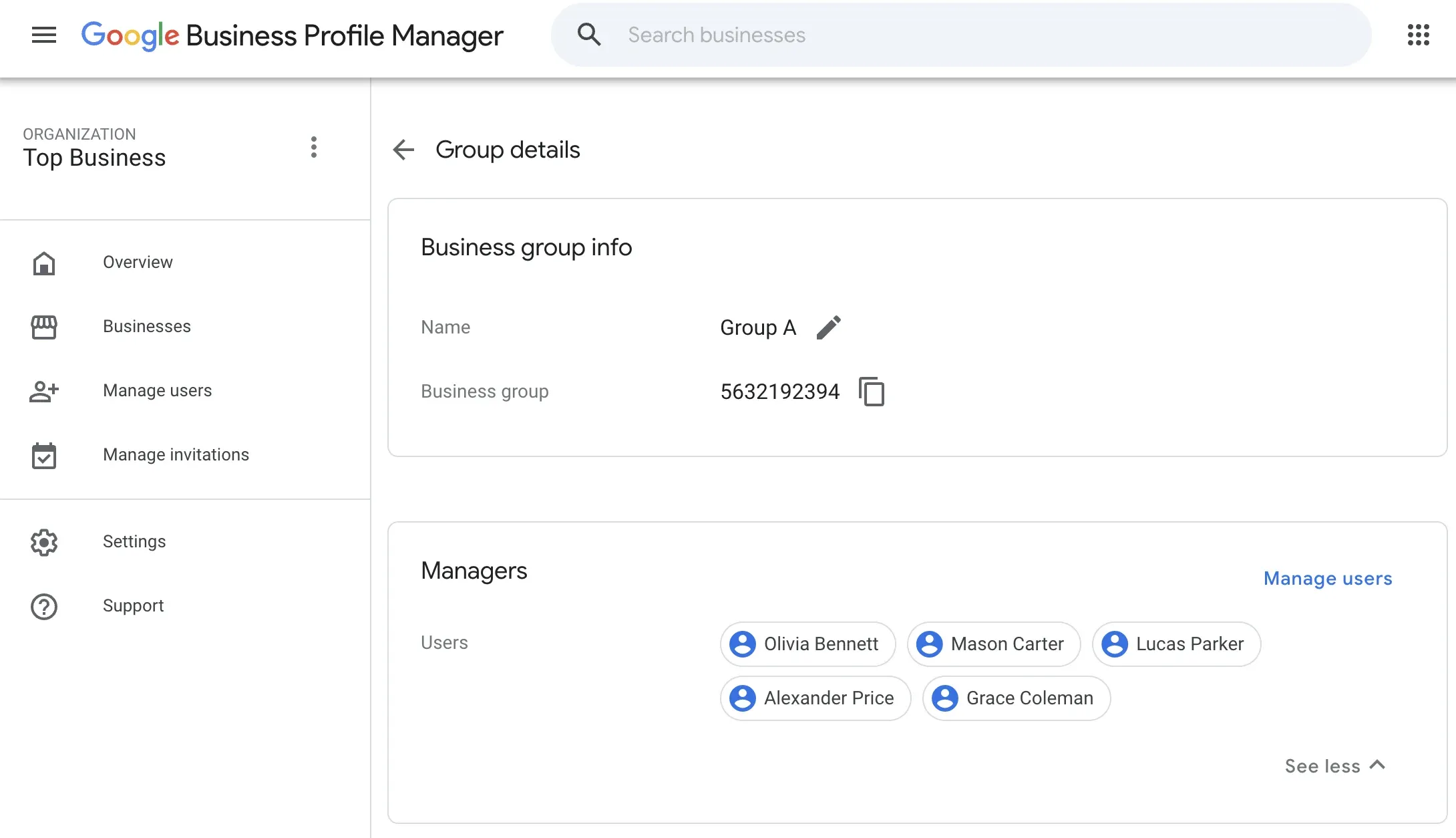
4d. Apply the principle of least privilege. Default to Manager access — it covers everything needed for day-to-day local SEO and profile management: editing info, responding to reviews, publishing posts, and uploading photos. Only grant Owner to people who need to manage other users. Keep Primary Owner exclusively for your master account.
Bonus Tip: Simplify Everything with a Multi-Location Platform
If you’re managing dozens or hundreds of locations, even a clean Google Business Profile setup requires ongoing manual effort. A dedicated platform lets you centralize everything in one dashboard.
Pluspoint lets you add team members with granular permissions without giving them direct Google account access — no Gmail registrations or password sharing. You also get business verification support, bulk updates, centralized review management, post scheduling, and local SEO analytics. A 14-day free trial covers all of this, with no credit card required.
Wrapping Up
Master account, consolidated ownership, organized groups, locked-down access. Four steps to go from a mess to a system you can actually manage. Your profiles are waiting — time to take them back.
There’s one more reason to prioritize this work: Google Maps’ Ask Maps, launched in March 2026, uses your Business Profile as its primary data source for AI-generated local recommendations. A clean, well-managed profile is now the foundation for appearing in conversational local search — not just in traditional results. The same shift has quietly rewritten what a “near me” search looks like: a nine-word question, not a two-word keyword.